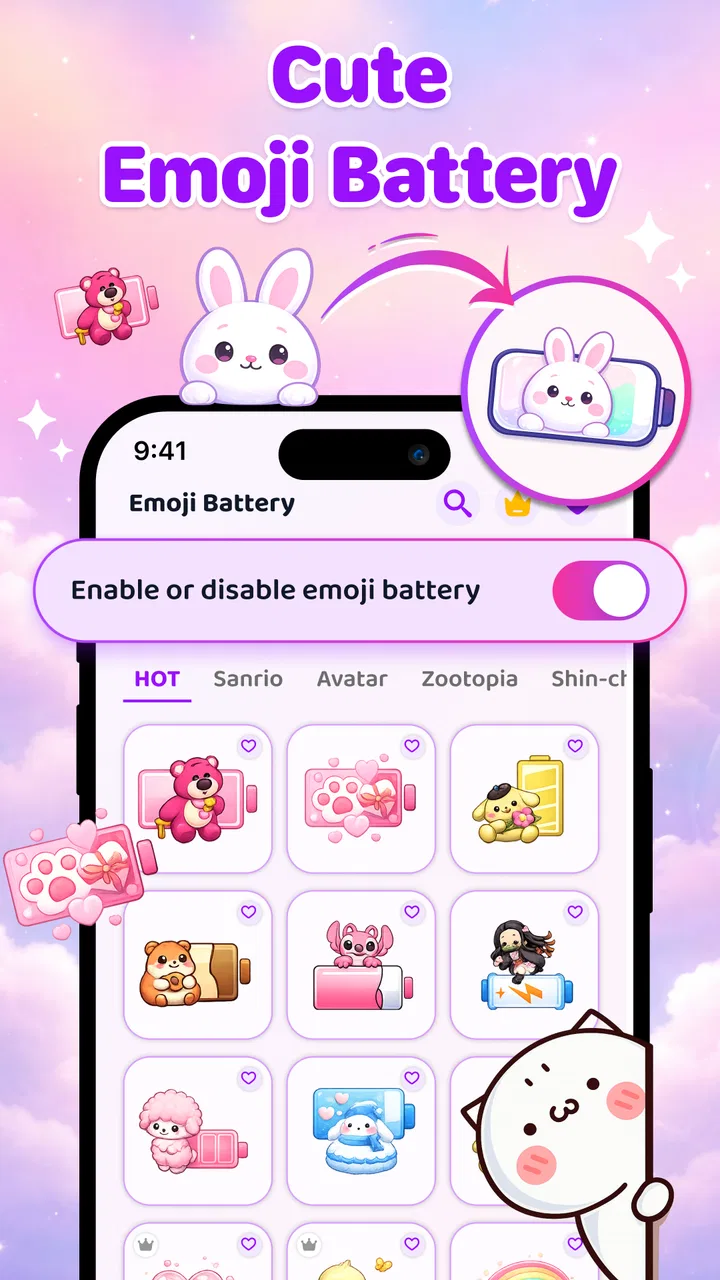
Emoji Battery Icon Customize
- 4.4
- Rating
- 10.00M
- Installs
- Free
- Price

 Analysis by App-foxy
Changing a battery indicator sounds like a tiny personalization job, but it can become surprisingly fiddly when the result depends on Android’s status-bar behavior. I spent time with Emoji Battery Icon Customize to see whether it makes that change feel simple or merely adds another layer between you and the phone’s existing battery display. My overall impression is that it is a playful personalization app with a clear visual purpose, but it rewards patience during setup more than instant tapping and forgetting.
Created by ZAppsolution, this free Android app sits in the personalization category and focuses on replacing the ordinary battery look with emoji, stickers, and themed designs. Its store summary points to status-bar customization, while the short label is simply Emoji Battery. That distinction matters: this is not a battery-saving tool, a charging optimizer, or a diagnostic utility. It is mainly about making a frequently seen part of the interface more expressive.
The app has a 4.4 average from around ten thousand ratings and has passed one hundred thousand installs, so it is not an obscure experiment with no audience. It is aimed at Everyone, runs on Android eight and newer, and is currently at version 1.0.14. The app itself is free, although individual in-app items range from $2.99 to $7.99. I would approach it as a visual accessory rather than something essential to phone maintenance.
You May Also Like

 AccuWeather: Weather Radar
AccuWeather Review: A Quick, Clear Forecast for Everyday Decisions
For everyday plans, the best forecast is the one you can understand quickly. AccuWeather makes rain timing, radar, and local conditions easy to act on, with a few trade-offs.

 Hill Climb Racing
Why Hill Climb Racing Still Turns Crashes Into One More Run
A tiny car, a bumpy hill and one more upgrade: Hill Climb Racing keeps resurfacing because its simple chaos makes every near-miss feel personal.

 AliExpress - Shopping App
AliExpress Makes Global Shopping Feel Personal, but Shoppers Bear the Risk
AliExpress turns a global marketplace into a pocket-sized discovery engine. Its reach is useful, its shopping loop compelling, and its trade-offs easy to miss.

 Lords Mobile: Kingdom Wars
Lords Mobile Is a Kingdom-Building Routine, Not a Quick Match
A case-by-case verdict on the building, battles, device demands, and social commitments that make Lords Mobile rewarding for some players and exhausting for others.

 PDF Scanner app - TapScanner
TapScanner Makes Paperwork Easier to Capture, Check, and Share
TapScanner makes scanning with a phone feel less like a rescue operation and more like a dependable step in getting work done. Its capture tools are useful, though not flawless.

 Block Blast!
 Shows How Much a Puzzle Game Can Leave Out
A quiet grid game shows why puzzle players increasingly value instant clarity, repeatable skill and low-pressure play—and where the genre still needs to catch up.
More From Our News Desk
View All News


What makes the first setup less obvious than it looks
The main point where I expect users to hesitate is the difference between selecting a design and actually seeing it in the status bar. Choosing an emoji or sticker is the enjoyable part. The less obvious part is confirming that the selected appearance has been applied, remains visible against the phone’s background, and does not conflict with the way a particular Android interface presents system icons.
On a straightforward device, the process should feel intuitive: open the app, browse the available visual styles, choose one, and check the status bar. But phones do not all draw that area in exactly the same way. Some use a dark status bar, some use a light one, and others change the appearance automatically depending on the screen. A design that looks clear in the app’s preview may be harder to read once it is placed beside the clock, signal indicator, and notification icons.
I recommend treating the first choice as a test rather than a permanent decision. Pick a high-contrast style first, then look at the indicator on the home screen, inside a bright app, and on a darker screen. This quick check tells you more than staring at the preview. It also helps separate a design problem from an application problem: if the icon appears but looks faint, the issue is probably the visual choice rather than the installation.
Another practical sticking point is expectation. A decorative battery icon does not necessarily behave like a full battery monitor. The phone’s actual charge information remains the important reference, while the customized graphic is an easier-to-notice visual layer. If you need precise battery-health information, charging history, temperature details, or power-consumption analysis, this is the wrong kind of app. Its value is expression and quick recognition, not technical reporting.
Checks worth making before blaming the app
Before changing several themes at once, I would establish a simple baseline. Confirm that the app opens normally, select one design, leave the app, and inspect the status bar after returning to the home screen. If the result is inconsistent, restart the app before trying multiple styles. This avoids creating confusion about which selection was supposed to be active.
It is also worth checking the phone’s own display settings. A very small status-bar area, unusual font scaling, a display cutout, or a heavily customized manufacturer interface can affect how much room is available. These are not necessarily faults in Emoji Battery Icon Customize. The app is trying to fit a decorative element into a space that Android and the phone maker already control.
Keep the first test uncomplicated. Do not begin by combining a busy sticker with a wallpaper that has similar colors, or by judging readability while many notifications are present. A clean home screen makes it easier to see whether the battery design is present and whether it remains recognizable as the charge level changes.
Because the app is free to install but includes paid items, I would also delay any purchase until the basic experience works on your phone. The free portion gives you a chance to judge the central idea: does a customized indicator genuinely improve your daily experience, or do you prefer the standard system icon? Paying for a style before answering that question is an avoidable risk.
A calmer way to recover when the display seems stuck
If a selected design does not appear immediately, I would follow a short recovery routine instead of repeatedly tapping different options. First, return to the app and confirm that the intended style is still selected. Next, close and reopen the app, then check the home screen again. If the phone’s interface has not refreshed, a normal device restart is a sensible next step.
This kind of recovery is deliberately conservative. I would not recommend changing unrelated system settings, installing another battery tool, or repeatedly switching themes while trying to diagnose one missing visual element. Each extra change makes it harder to know what solved the issue. A single style, a clean restart, and a second check provide a much clearer test.
If the icon appears after reopening but disappears later, I would compare the behavior across ordinary phone use rather than assuming the app has failed. Look at it after opening another application, returning to the launcher, and locking and unlocking the screen. If it survives those transitions but not one particular screen, that points toward an interface-specific limitation. If it vanishes everywhere, the app may need to be reopened or the phone’s system interface may be overriding the presentation.
I also prefer changing one variable at a time. Select a different emoji without changing the wallpaper. Then, if necessary, restore the original system appearance and test again. This is especially useful for users who want a reliable daily indicator rather than a constantly changing decorative setup. A repeatable result is more valuable than a large collection of styles that behave unpredictably.
When the phone, not the customization app, is responsible
Android’s status bar is a system-managed area, and each manufacturer can add its own visual rules. That means a missing or altered battery design may come from the phone’s interface, a screen mode, a launcher interaction, or a system refresh issue rather than from ZAppsolution’s app itself. The most useful question is not “why is the app broken?” but “does the problem happen everywhere, or only under one display condition?”
For example, if the design is visible on the home screen but not inside a particular full-screen application, that application may be hiding or replacing the status bar. If it is visible only when the phone is unlocked, the lock-screen layout may be handled separately. If the standard battery indicator also behaves unusually, the phone’s own status-bar configuration deserves attention before the customization app does.
Readability is another case where the app may not be the cause. A tiny emoji can be technically present while still being a poor practical indicator. A colorful sticker may look charming in a preview but blend into a wallpaper or become difficult to distinguish beside notification icons. I would favor simple, high-contrast designs for workdays and reserve more decorative choices for a phone setup where appearance matters more than instant recognition.
There is also a trade-off between personality and consistency. The standard Android indicator is familiar, restrained, and designed to fit the rest of the system. A customized icon can make the phone feel more personal, but it may also look out of place beside stock icons. Users who prefer a clean, uniform interface may find the change distracting after the novelty fades. In that case, the usual system battery icon is not an inferior alternative; it is the better match for that preference.
Everyday situations where the change makes sense
I can see the appeal during a busy morning. Imagine checking the phone while leaving home, glancing at the top corner, and immediately noticing a bright battery emoji among the usual monochrome symbols. That extra visual character can make the status bar easier to notice, especially for someone who enjoys themed home screens and matching accessories. The benefit is small, but it is repeated many times throughout the day.
It can also suit a shared family tablet or a child-friendly device where a conventional percentage feels dry. Since the content rating is Everyone, the concept is accessible to a broad audience. Still, I would explain that the design is decorative and that the normal battery information remains important. A playful icon should not become the only way someone decides whether a device needs charging.
For a themed phone, the app can be part of a larger visual routine: choose a seasonal wallpaper, match the status-bar decoration, and leave the rest of the system unchanged. That restrained approach works better than trying to redesign every element at once. The battery area is small, so one well-chosen accent can feel intentional, while several competing decorations can make the interface look crowded.
On the other hand, I would skip it if your priority is battery life. Nothing about the app’s purpose suggests that it will extend runtime, reduce background consumption, or repair a worn battery. I would also skip it if you need a detailed battery dashboard. A conventional diagnostic or device-monitoring tool would be a more appropriate choice for that job, while this app is better viewed as a cosmetic layer.
How it compares with the usual alternatives
The most obvious alternative is Android’s built-in battery icon. It requires no extra setup, follows the phone’s design language, and is generally the least troublesome option. Emoji Battery Icon Customize becomes worthwhile when the standard indicator feels too plain and you are willing to spend a few minutes checking visibility and consistency.
Another alternative is a full home-screen customization setup using widgets, launchers, or themed icon packs. Those tools can change far more of the phone, but they also demand more decisions and may alter the way you access applications. This app is narrower and easier to understand: it targets one small interface element instead of asking you to rebuild the entire launcher experience.
That narrow focus is both its strength and its limitation. You do not need to commit to a complete visual overhaul, but you also should not expect the depth of a full theme system. If your goal is a coordinated home screen with matching icons, fonts, and widgets, a broader customization solution may serve you better. If you only want the battery area to feel less ordinary, this focused approach is more sensible.
The paid-item model adds another consideration. Since the download is free, you can test whether the basic idea fits your phone before spending anything. I would judge a purchase by long-term use rather than by the excitement of the first preview. If you change wallpapers and themes often, a favorite design may have lasting appeal. If you usually keep the same setup for years, the free selection may be enough, and an additional purchase may not add much value.
Who will enjoy it, and who should leave it alone
I would recommend this app to Android users who enjoy small visual details, use themed wallpapers, or want a more noticeable battery indicator without replacing the entire launcher. It is particularly suitable for someone who understands that personalization sometimes involves a little testing. The app’s current version, 1.0.14, gives it a defined starting point, but the practical experience still depends on how the individual phone handles its status bar.
I would be more cautious for users who want everything to work invisibly in the background, who dislike decorative icons, or who rely on the most conservative system interface possible. The standard battery display is likely a better choice for those people. I would also choose another category of app for battery diagnostics, power management, or health monitoring, because changing the icon does not address those needs.
One useful habit is to decide what success means before installing. If success means “my status bar feels more personal and I can still read the battery state quickly,” this app has a clear chance of satisfying you. If success means “my phone lasts longer” or “I can investigate charging problems,” the app is being asked to solve a problem outside its purpose.
My practical verdict
Emoji Battery Icon Customize is a focused personalization app with an appealing idea and a suitably simple goal. I like that it can add character without forcing a complete launcher makeover, and the free entry point makes experimentation reasonable. The strongest result comes from choosing a readable design, checking it in several everyday screens, and keeping expectations limited to appearance.
The friction is not really in understanding what the app is for; it is in dealing with the status bar as a system-controlled space. A design may need a second look after leaving the app, and some phones may present the result less consistently than others. That does not make the app useless, but it does mean I would not install it expecting a completely hands-off experience.
My recommendation is simple: try it if you want a small, playful change and are happy to spend a few minutes validating the result on your own phone. Start with a clear style, postpone paid items until the free experience proves reliable, and keep the normal battery information in mind. The best reason to use it is personal expression, not battery management. For that specific purpose, it is an enjoyable option; for anything more technical, the built-in indicator or a dedicated battery utility is the wiser choice.
FAQs for Emoji Battery Icon Customize
01What is Emoji Battery Icon Customize and how does it work?
Emoji Battery Icon Customize is an app that allows users to personalize their device's battery icon with various emojis. It works by providing a range of emoji options that can replace the standard battery icon, offering a fun and unique way to monitor battery life while adding a touch of personalization to your device's interface.
02Is Emoji Battery Icon Customize compatible with all devices?
Emoji Battery Icon Customize is compatible with most Android and iOS devices. However, it's important to check your device's specifications and operating system version for compatibility. Some older models or specific versions of operating systems might not support certain features of the app.
03Does using Emoji Battery Icon Customize affect battery performance?
The app is designed to be lightweight and should not significantly impact battery performance. It mainly replaces the visual aspect of the battery icon without altering the battery's functionality. However, as with any app, excessive customization or background activity can have a minor impact.
04How do I install and set up Emoji Battery Icon Customize?
To install Emoji Battery Icon Customize, download it from the App Store or Google Play Store. Once installed, open the app and follow the on-screen instructions to select and apply your preferred emoji battery icon. Make sure to grant any necessary permissions for the app to function properly.
05Is there a cost associated with Emoji Battery Icon Customize?
Emoji Battery Icon Customize is free to download, but it may offer in-app purchases for additional emoji packs or premium features. Users can enjoy basic customization for free, while those interested in more diverse options might choose to purchase additional content through the app.
Pros
- Highly customizable battery icon options.
- Easy-to-use interface for quick setup.
- Supports both Android and iOS platforms.
- Lightweight app that runs smoothly.
- Regular updates with new features.
Cons
- Limited free customization options.
- Some features require in-app purchases.
- Ads can be intrusive at times.
- May drain battery with frequent updates.
- Requires permissions to access settings.

Emoji Battery Icon Customize
Gallery